
Check a table with merged headers
The sample has three product rows, three columns, and two header rows. Product details spans SKU and Product; Units spans both header rows. In Studio, remove the extra group header and use SKU, Product, Units as the single heading row. The reference workbook shows that flat target, with unit counts 12, 8, and 20. Compare values after repair rather than expecting every merged layout to export untouched.
Why web tables break when pasted into Excel
Excel interprets the contents of the clipboard as well as the destination cell format. A simple HTML table often pastes into the right columns. A dashboard built from nested elements may instead produce missing headers or extra text.
There is a separate problem after the columns line up: Excel can interpret identifiers as numbers and date-like strings as dates. The right route depends on whether you need the original text, numbers for calculations, or both.
Try it with a small table first
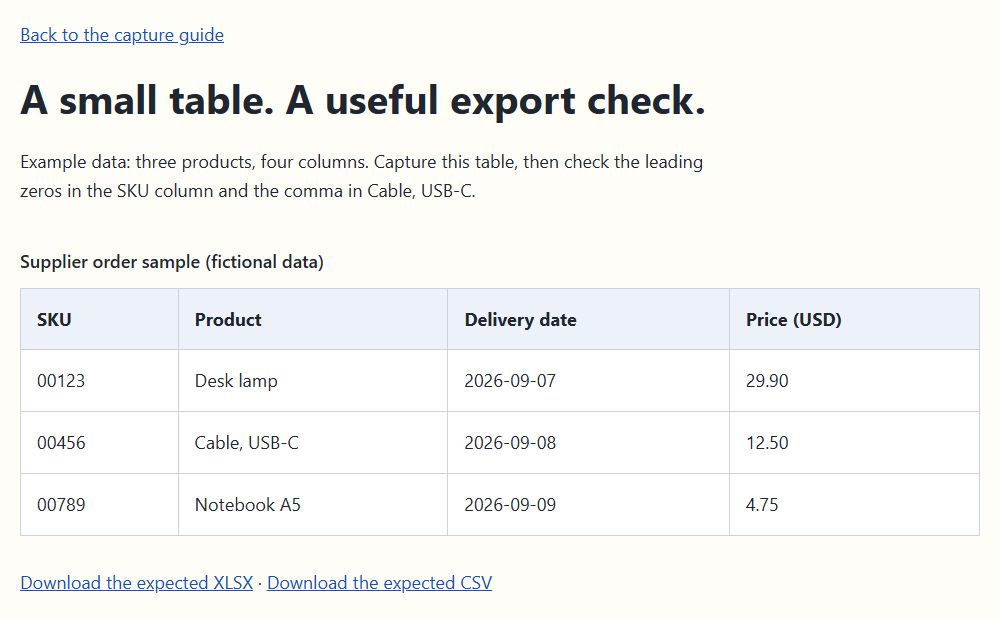
The example has three products and four columns. It includes a code with leading zeros, a comma inside a product name, and dates written as year-month-day. Those details make it easier to spot a bad import than a table filled with simple numbers.
Open the separate sample page to capture it with the extension. The downloads below contain the same cells, generated with the extension’s export code.
Compare an ordinary paste with the workbook export
Select the sample table in Chrome and copy it. In a new Excel worksheet, select A1 and paste into cells using the default General format. Look at the SKU and Delivery date columns. Your result depends on your Excel version, locale, clipboard format, and automatic conversion settings.
Now open the downloadable XLSX. The sample workbook stores those same cells as text, including 00123 and 2026-09-07. The comparison below describes what to check; it is not a claim that every Excel installation produces the same paste result.
| Source value | Ordinary paste: check for | Provided XLSX export |
|---|---|---|
| 00123 | May become 123 in General cells | 00123 stored as text |
| 2026-09-07 | May become a date with a local display format | 2026-09-07 stored as text |
| Cable, USB-C | Should stay in one cell with HTML paste | One text cell |
| 29.90 | May become the number 29.9 | 29.90 stored as text |
Export the same table with the extension
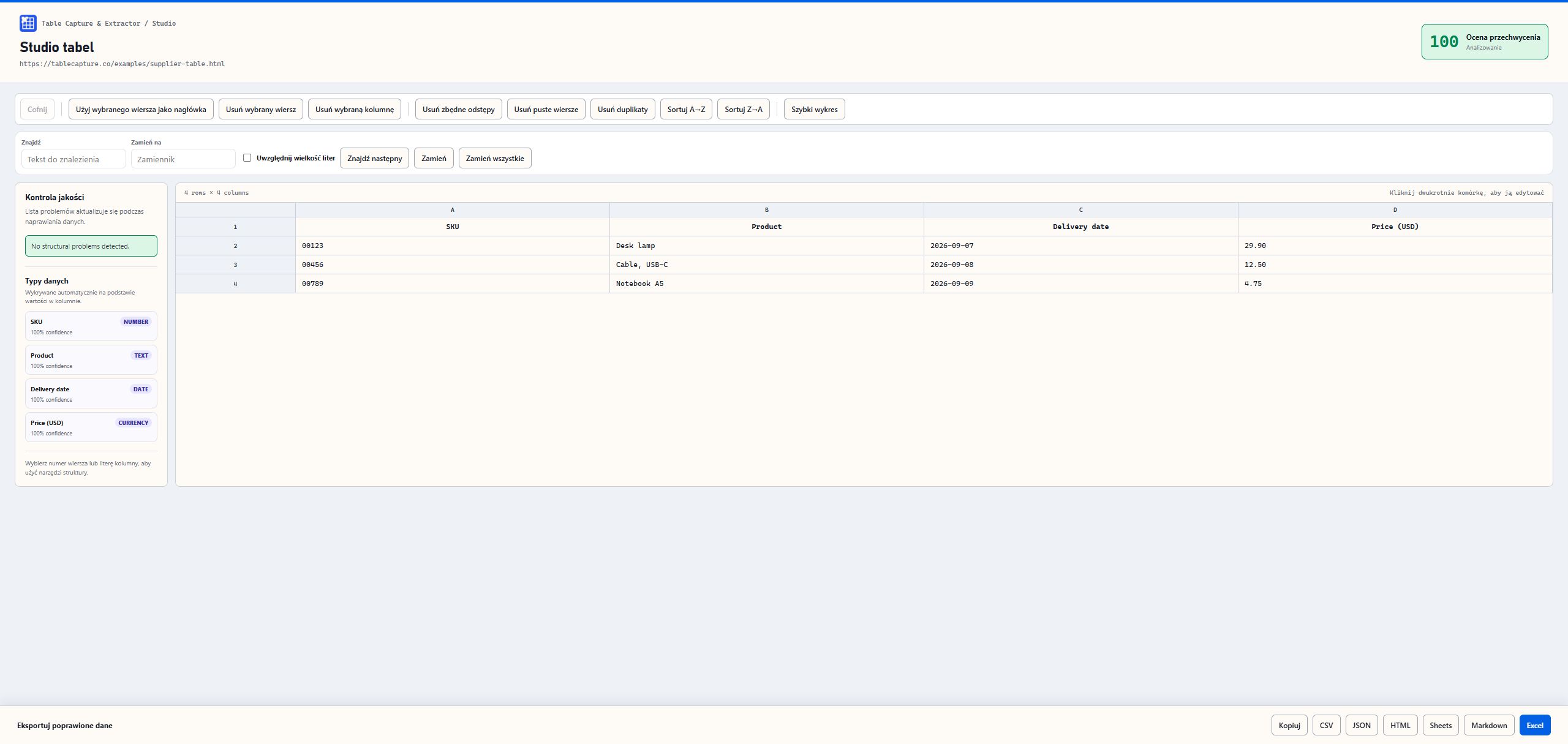
On the sample page, open Table Capture & Extractor and select the four-column table. Open Table Studio to see the capture. The screenshot uses the same three products as the source table and downloads.
- Check four columns and three product rows, plus the header.
- Read the first and last SKU. Both should retain their two leading zeros.
- Check that Cable, USB-C remains a single product cell.
- Choose Excel and open the workbook. Keep SKU as text; convert only the columns you need for calculations.
Keep IDs as text and convert prices deliberately
Product codes are labels. Adding them together has no useful meaning, so leave them as text. For the Price column, Excel may offer Convert to Number for numeric text. Apply it to the price cells only, then format those cells to show two decimal places.
Do the same kind of deliberate conversion for dates. The example uses an unambiguous year-month-day spelling, but exported text is not an Excel date serial. Choose a conversion that matches the source format if you need date arithmetic.
Changing an already shortened ID from 123 to Text will not bring back the zeros. Return to the source or the unchanged workbook. Similarly, do not guess a missing digit in a long identifier.
When to choose CSV instead
CSV is useful when another application expects a plain-text import. Download the example CSV and inspect it in a text editor: Cable, USB-C is surrounded by quotes, and 00123 is still present. The file contains those characters even if Excel displays something else after opening it.
Use Excel’s Data > From Text/CSV import when you need control over column types. Set identifier columns to Text before loading them. A double-click gives Excel more room to guess. Menu labels and available conversion options vary by Excel version.
Check completeness before sharing the file
Compare the exported row count with the page, including any filters or pagination. Look at a row from the middle and the last visible row, not just the first product. A neatly formatted workbook can still be incomplete.
If the source has a total, keep it separate from the individual records before summing values in Excel. Otherwise you can count the total twice. Save the source URL alongside the workbook so a colleague can retrace the export.
Check loaded rows and report access
For a changing table, compare the exported record count with the source after loading finishes. Pagination and virtualization can leave out records even when the visible columns look correct.