
What a table capture Chrome extension actually does
The extension detects HTML tables and some table-like layouts, including DIV and ARIA grids. It collects cell values into rows and columns, then opens that data in an editor. It can also scan accessible frames and open Shadow DOM roots.
Ordinary copy and paste can work perfectly on a simple HTML table. The preview becomes useful when a page includes merged headers, extra controls, or only part of a larger dataset. You can check those details while the source is still open.
Try it with a small table first
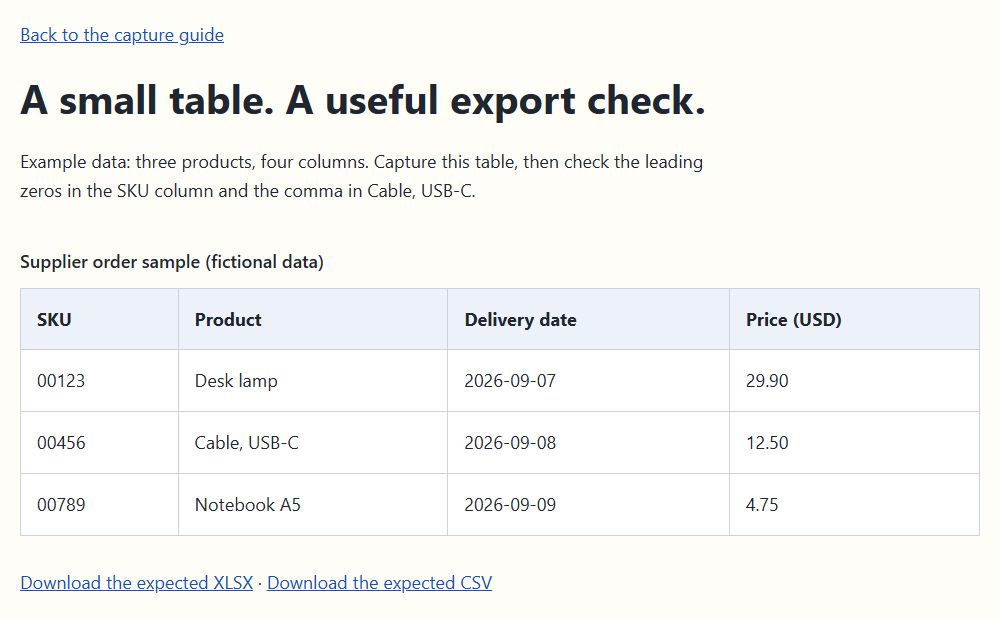
The example has three products and four columns. It includes a code with leading zeros, a comma inside a product name, and dates written as year-month-day. Those details make it easier to spot a bad import than a table filled with simple numbers.
Open the separate sample page to capture it with the extension. The downloads below contain the same cells, generated with the extension’s export code.
Capture the sample in Chrome
Install the extension from the Chrome Web Store and open the sample page linked above. Keep that page active when you open the extension.
- Click the Table Capture & Extractor icon in Chrome. Pin it from the Extensions menu if you use it regularly.
- Choose the detected table with four columns. Expect four rows when the header is included, or three data rows.
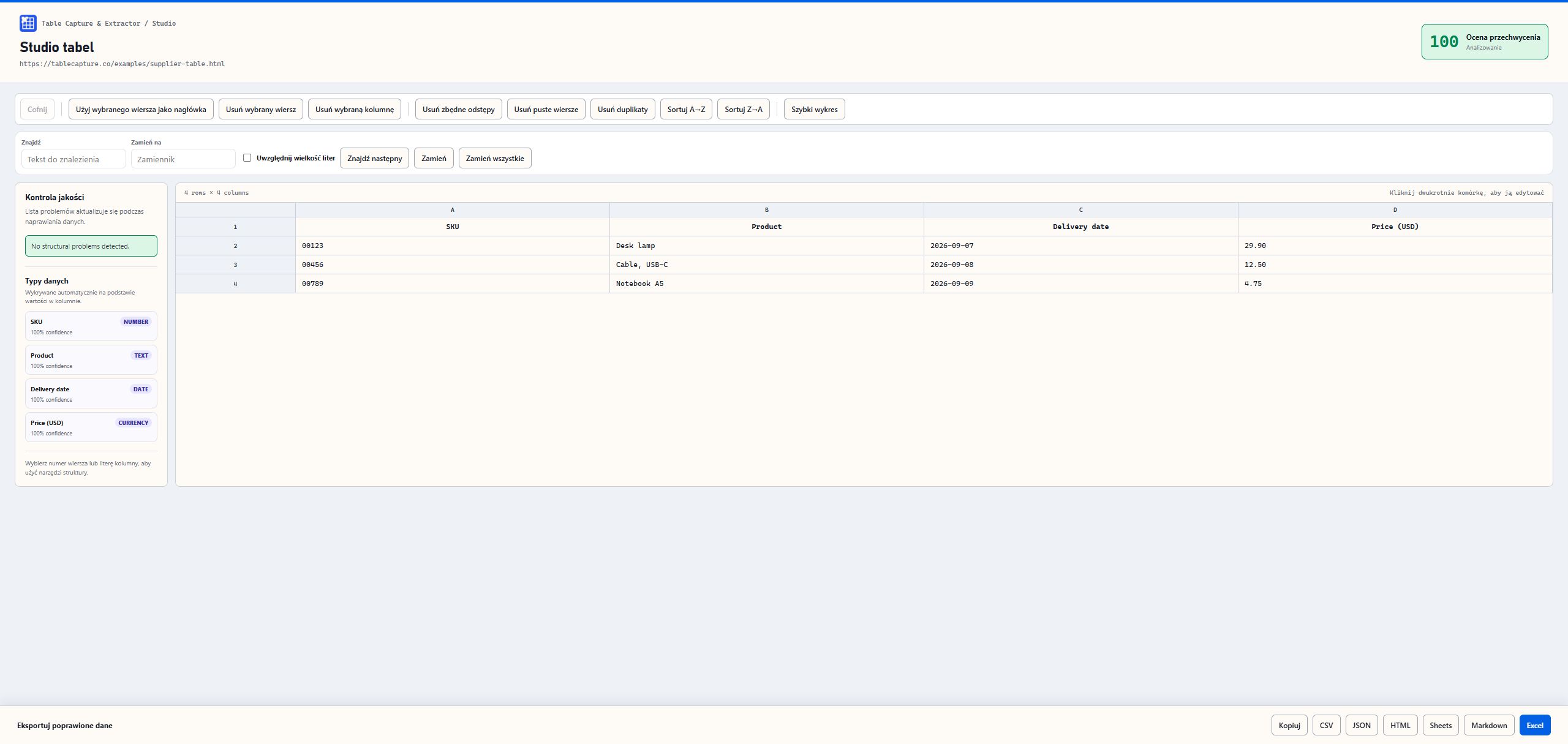
- Open the capture in Table Studio. Compare SKU 00123 and Cable, USB-C with the source.
- Use Excel to download an XLSX workbook, or CSV for a plain-text export.
- Open the file and confirm that every product still occupies one row.
Check the preview before downloading
The sample does not need repairs. In a real report, start by checking whether the first row contains the actual column names. If a title row was captured above them, select the correct row and use the header control. Remove only rows you have confirmed are unwanted.
Double-click a cell to correct a value. Find and replace helps with repeated text; trimming removes stray whitespace. Use Undo if a change affects more cells than you intended. Do not remove duplicates just because two prices match: compare the whole record.
Capture Score reports structural checks. A score of 100 does not establish that the source data is correct, that every page was captured, or that an ID should be treated as a number. The sample SKU may be detected as numeric even though it is an identifier.
Choose Excel or CSV for the next step
The current Studio workflow keeps captured cell values as text when building the workbook. That preserves the sample code 00123. It also means a price or date may need a deliberate conversion in Excel before you calculate with it.
CSV carries the characters, but it does not carry cell types. The comma in Cable, USB-C is quoted in the sample CSV so it stays inside one field. Excel may still change codes and dates when you open that file directly. Import those columns as text if their exact spelling matters.
Capture part of a table, or deal with missing rows
For a wide table, cell range mode lets you select only the rows and columns you need. Include the header when you want column names in the exported file.
A page may fetch more rows as you scroll, replace visible rows as you move, or split the report across pages. Advanced capture can help with loading, but check the final row count. The extension cannot guarantee recovery of data the page never exposes. Image-only tables need a different route.
What is included for free?
The current extension includes web capture, Table Studio, PDF extraction, and Excel/CSV export without an account or subscription. Capture and file generation run in your browser. Connected destinations and other Pro roadmap items are separate from the features available today.
Start with the sample, then try one representative table from your own work. A successful export of that table tells you more than a long feature list.